
To claim your business on ChatGPT, open Business Hub, find the right listing, and verify that you can manage it. You’ll also need to complete a separate identity check before you can publish updates or use the available insights.
ChatGPT Business Hub launched in beta on 10 November 2026. It gives eligible businesses a way to keep their information current and see some of their activity inside ChatGPT. For marketing teams, that is worth setting up. It is also worth understanding exactly what the numbers count.
Business Hub lets you manage your profile. Chatobserver checks the questions you choose and shows whether ChatGPT names your brand, which competitors appear, and which pages it cites. You can track your brand without a claimed Business Hub profile.
Use the claiming steps and check the UK and business-type restrictions. Already claimed your profile? See how to track your ChatGPT visibility.
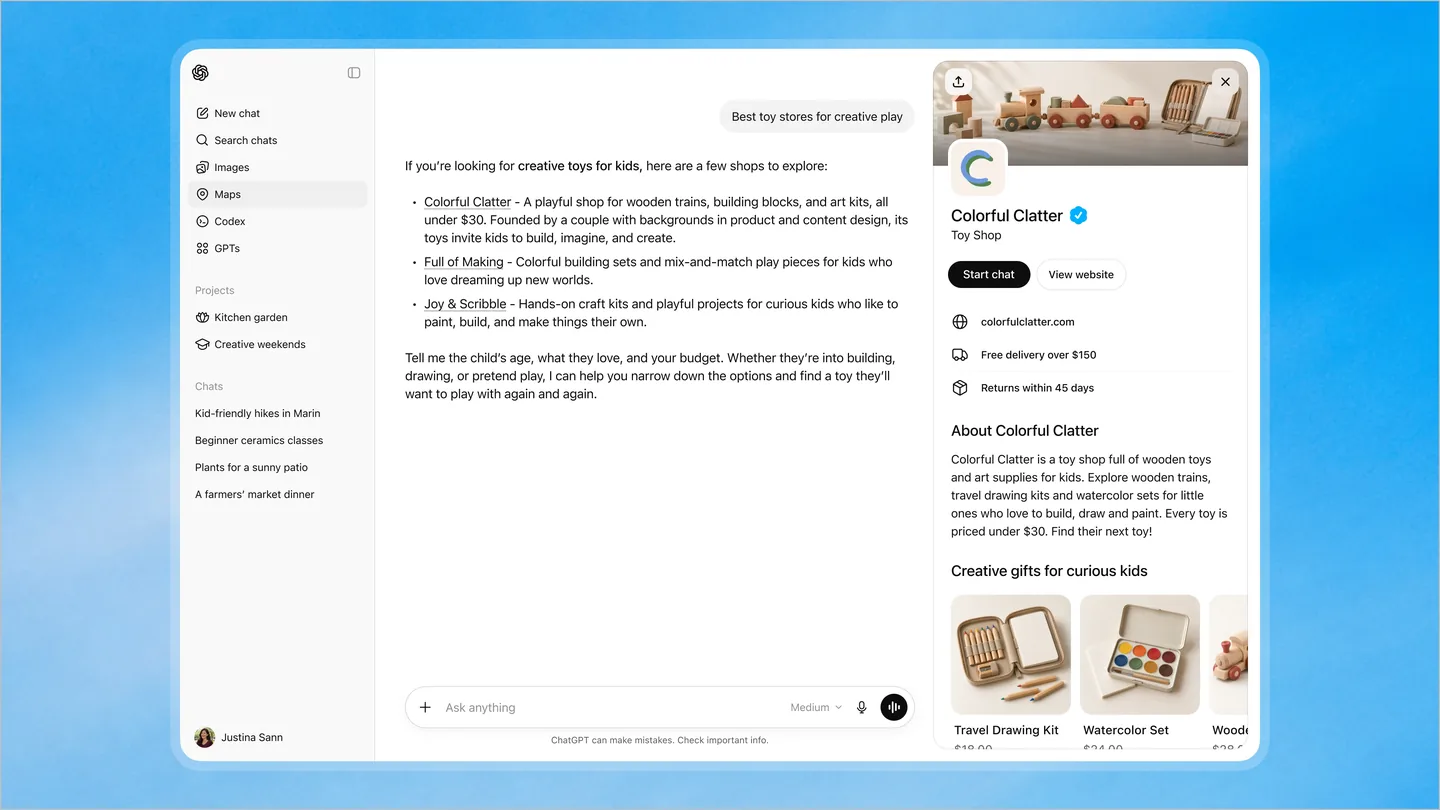
What is ChatGPT Business Hub?
Business Hub is the management area for OpenAI’s Businesses in ChatGPT offering. You can claim a business profile, contribute information, and, once verified, access the features available to your business.
Think of it as a place to manage your business information in ChatGPT, much as you would claim a Google Business Profile. The comparison only goes so far: claiming doesn’t give you control over ChatGPT’s independent recommendations or guarantee a place in its answers.
Three similar names are easy to mix up:
- Business Hub is where you manage the business and its insights.
- A Business Agent is an optional, labelled chat where customers can ask your business follow-up questions.
- ChatGPT Business is the workplace subscription for your team. Buying that subscription does not claim your public profile.
The distinction matters if you arrived here looking for the Business Hub login. The place to start is chatgpt.com/business-hub.
Can you claim your business on ChatGPT in the UK?
Eligible businesses can claim where ChatGPT and the required verification are supported. Your location, category, and the options offered to your business still matter. OpenAI’s eligibility information does not promise every feature to every business.
In particular, local shops and restaurants can currently claim only an existing US listing. Business Agents are also limited to eligible US ecommerce and online service businesses at launch.
BAW Creative’s UK guide reports that some service-business setup options showed as coming soon. That is a reported launch state, rather than a rule for every account. If your category has no available route, there may be nothing for you to verify yet.
For a UK brand, check what you can claim today and treat agent access as a separate question. Do not plan a customer-facing agent around an expansion date OpenAI has not announced.
You do not need a claimed profile to use Chatobserver. While you wait for an eligible claiming route, check whether ChatGPT already recommends your brand.
Before you claim: get access and business details ready
A few checks will save you stopping halfway through:
- Choose who will manage it. Use an account the business intends to retain. For an agency, agree ownership with the client first; do not make a shared password your access plan.
- Check your verification access. Know who controls the business email, phone, DNS, or Shopify store. Website editing access does not necessarily include DNS.
- Have accurate business records available. Identity checks may request evidence of the business and your authority to represent it.
- Review the public information. Make sure you are ready for the name, description, and linked pages to be seen by customers.
How to claim your business on ChatGPT
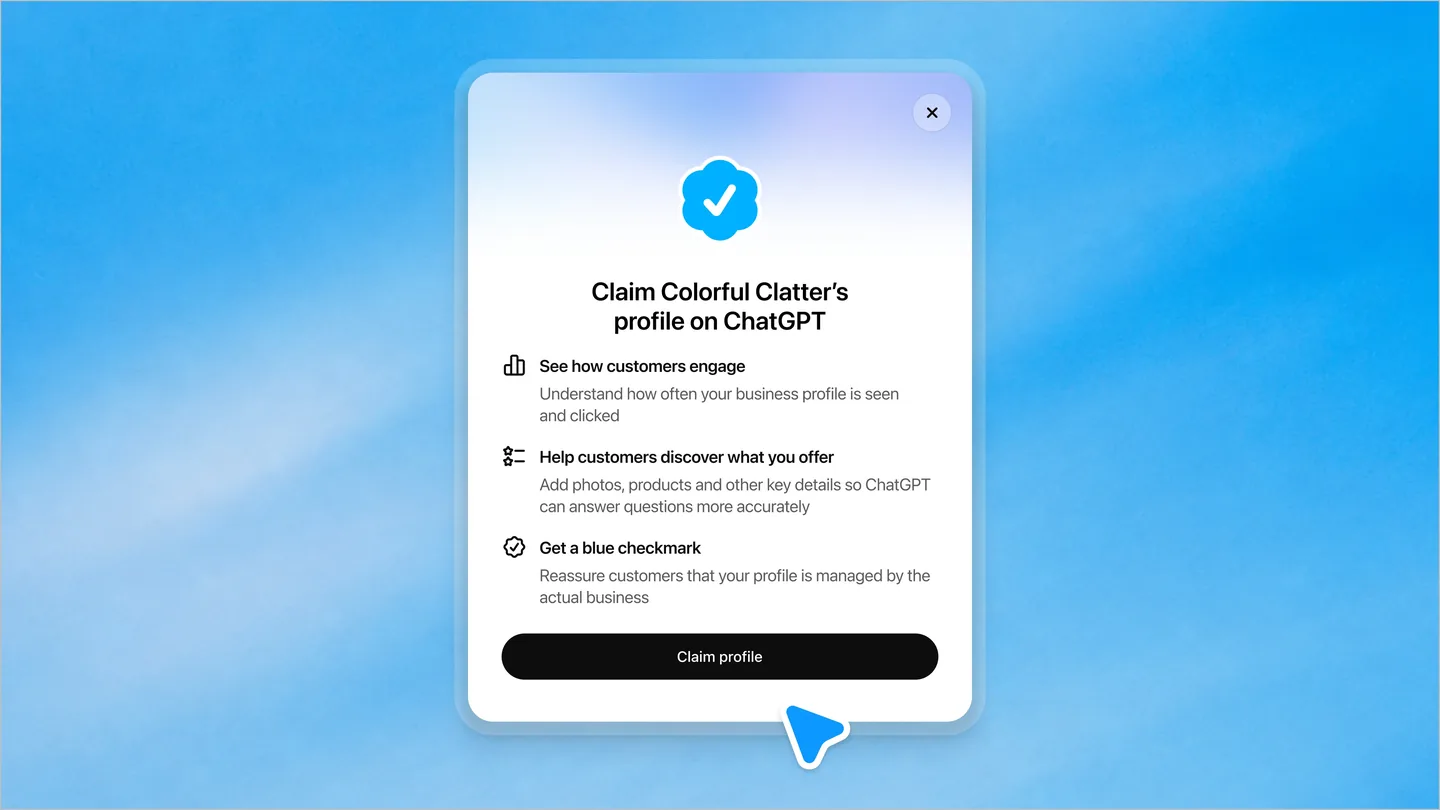
The official setup guide separates claiming the business from completing identity verification. Submitting either check is not the same as approval.
Open Business Hub and search for your business
Sign in at ChatGPT Business Hub, or use the web sidebar. Search by business name and check which account will manage the profile.
Select the right listing
Choose the matching business. Eligible online businesses may be offered an add option if no listing exists. Use the route actually shown for your business type.
Verify your connection to the business
Use an offered phone, email, domain, or Shopify check. Domain verification needs the supplied DNS TXT record, entered exactly.
Keep whoever manages DNS involved if you use that method. Rewriting the website description will not fix a record entered in the wrong place.
Wait for approval and complete Persona verification
After claim approval, complete Persona to unlock profile updates, feeds, insights, and eligible agents. Approval of a newly created profile through Persona publishes that profile automatically.
Review the information before you submit it. Creating a public profile and publishing an agent are different decisions.
Check your profile and maintain the information
Review the business details customers will rely on, then decide whether to add a feed or prepare an agent. Under the Businesses in ChatGPT terms, previewing an agent does not publish it; publishing is a separate choice.
What if your claim is stuck?
For pending claims, wait for the review email. A locked listing routes you to support; an already-claimed profile offers an ownership dispute. After a failed identity check, follow the emailed correction instructions. Use OpenAI’s troubleshooting guidance.
Keep a note of which stage is blocked. While the claim is pending, start checking your brand in ChatGPT answers so you have a baseline to compare later.
What should you update after your business is verified?
Start with the facts that help someone decide whether you are a fit: what you sell, where you operate, the right website pages, and the conditions that affect a purchase.
Read the description as a customer. Can they tell what the business does? Does the linked page explain the offering? Does the website agree with the profile? Assign an owner for updates when products, services, or policies change.
Claiming also does not give you exclusive control over the listing. OpenAI’s listing terms allow information from other sources. Your wider web presence still deserves attention.
Should you connect a product feed?
If you sell products, a feed can supply prices and availability. OpenAI supports self-service product feeds, and Shopify merchants can connect through Business Hub or Shopify admin. Read the product-feed announcement.
Check the data before connecting it. Product titles should make sense to a buyer; prices, stock, and policies should agree with the store. A feed is only useful while someone maintains it.
After updating your profile or feed, check what ChatGPT actually says about your business, including the competing brands and sources it uses.
Do you need a ChatGPT Business Agent?
You can use a claimed profile without publishing an agent. An eligible business can separately offer a labelled conversation where customers ask about products and policies. That conversation is distinct from ChatGPT’s independent answer. OpenAI explains the customer experience here.
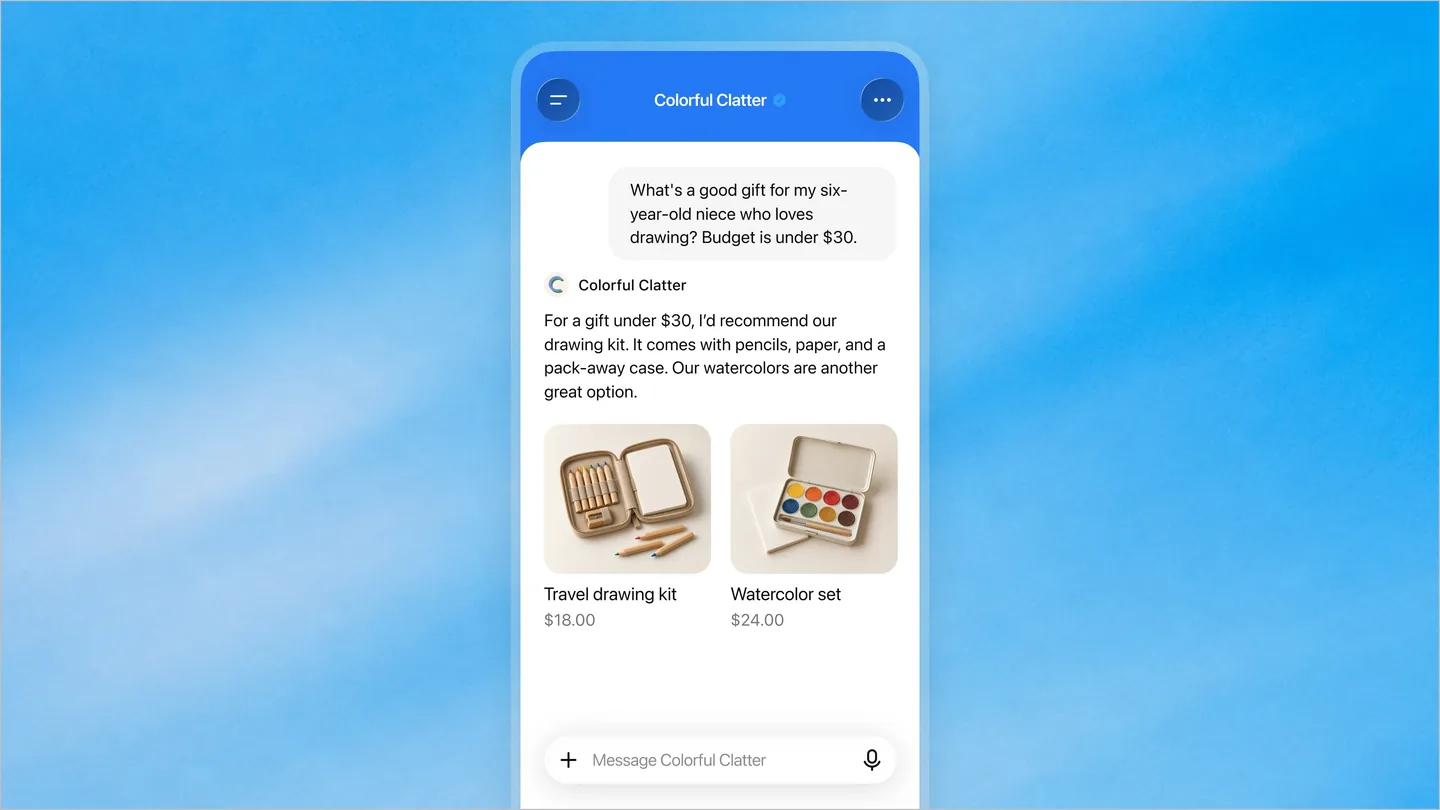
If you have access, test the questions that are difficult to answer well: delivery exceptions, returns, product limitations, and missing information. Check that the agent sends people to the right next step.
OpenAI’s agent policy prohibits invented prices, availability, and guarantees. Give someone responsibility for reviewing the information after launch. The goal is a useful answer a customer can rely on.
ChatGPT Business Hub analytics: what do mentions and clicks mean?
The reporting is welcome. It is also easy to read more into it than it proves.
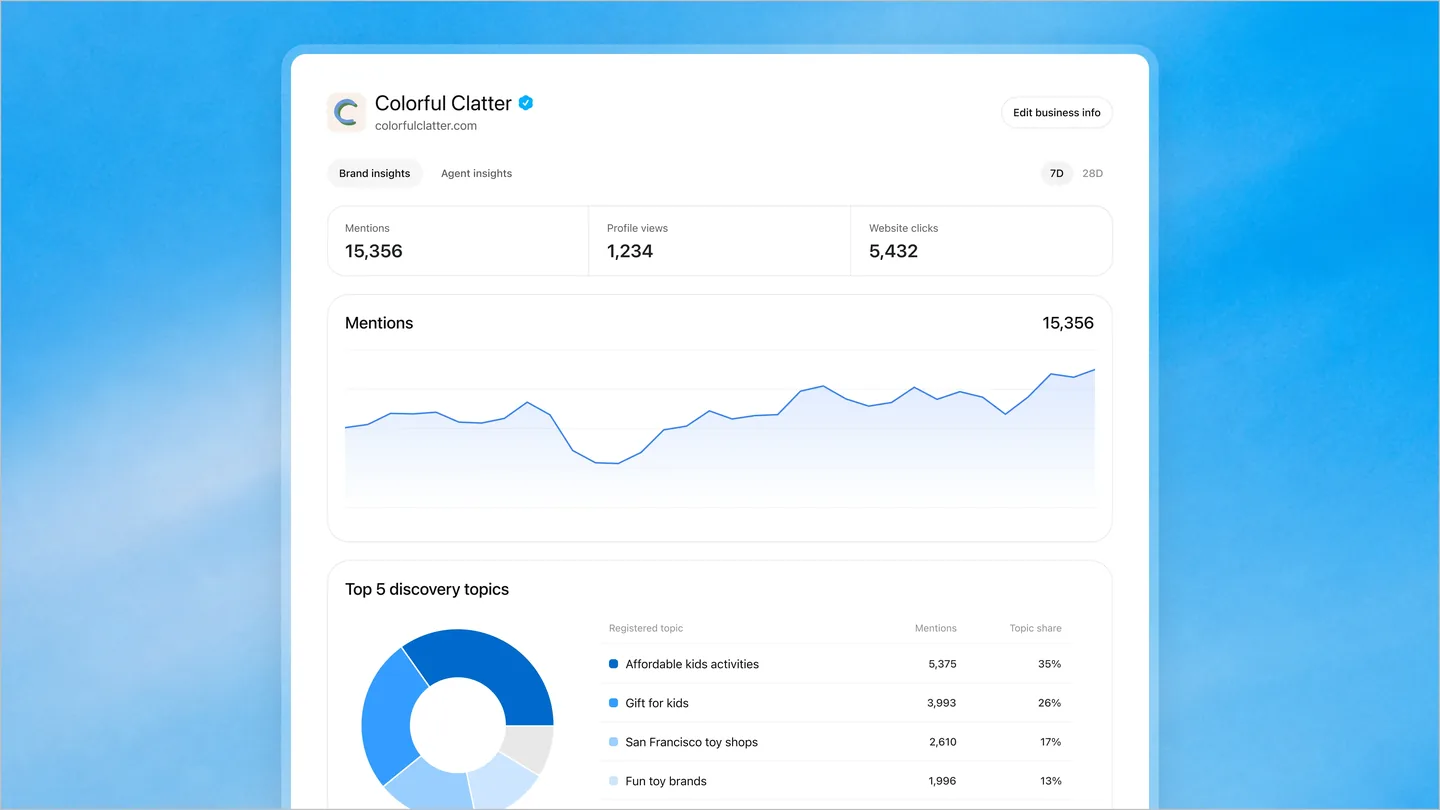
Business Hub shows mentions, website clicks, and discovery topics. Digiday’s launch reporting confirms that businesses do not receive individual prompts or conversations, and that share of voice is absent from this beta.
A recommendation does not always count as a mention
For online businesses, OpenAI counts a mention when ChatGPT references the business’s website. The brand name alone does not qualify. For local businesses, the definition is a result shown for that location.
Imagine a fictional software company appearing in a shortlist, with the recommendation supported by a third-party comparison site. A potential buyer has seen the brand and why it might fit. But the name alone does not meet the online-business reporting rule.
That is why I would keep brand presence and website references as separate measures. Calling either one your total ChatGPT visibility would hide something useful.
Sources-panel links remain an open question
The published wording does not explicitly settle whether a URL appearing only in the Sources panel counts, or whether a click from that panel enters the report. I want that clarified. For now, there is no basis here to declare either inclusion or exclusion.
OpenAI told Digiday that reported clicks come from supported ChatGPT surfaces. They do not confirm completed visits or purchases. A number labelled clicks should not become revenue attribution somewhere between the dashboard and the client presentation.
A blank metric is not necessarily zero activity either. Reporting thresholds, collection, and unavailable data can explain it. See the metric definitions.
For national service brands, software companies, and publishers, that website-reference rule deserves particular attention. Third-party coverage may help a brand get recommended. How much of that exposure falls outside these counters still needs evidence.
This is why I would inspect answers alongside the Hub totals. Chatobserver lets you read the recommendations and cited pages in the answers it collects, including recommendations supported by another website.
Track your ChatGPT visibility with Chatobserver
Chatobserver runs the buyer questions you choose and keeps the answers. See whether your brand appears, read how it is described, and compare the competing businesses and cited pages. You can investigate the answer behind a change instead of guessing from a total.
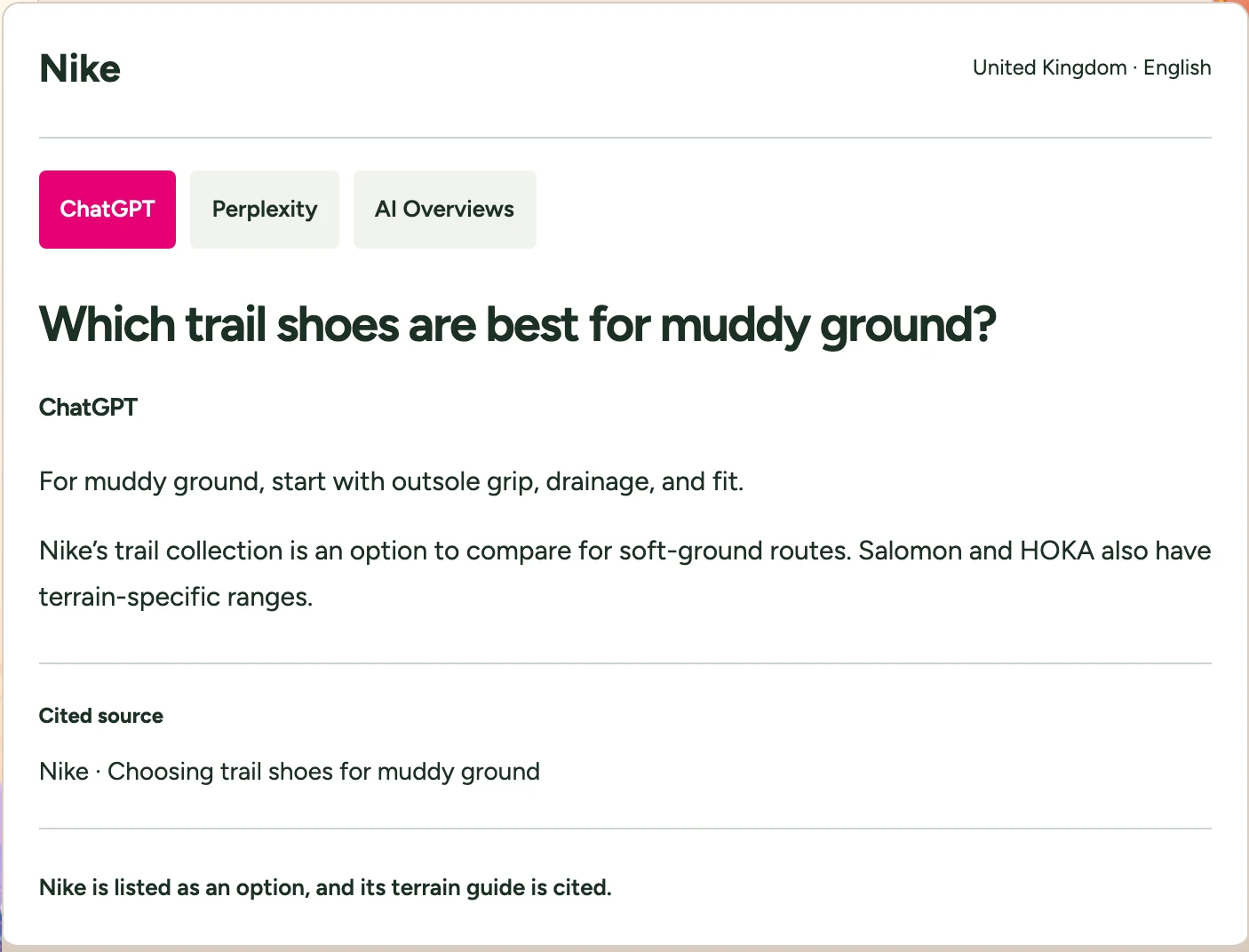
Start with a small set of questions customers ask before they know which company to choose. Include category recommendations, alternatives, and practical requirements. Keep questions that name your brand separate from questions that do not.
For each answer, check four things:
- Does your brand appear, and is it actually recommended?
- Which competitors appear with it or instead of it?
- Does the answer accurately describe what you offer?
- Does it cite your website, a third party, or a competitor?
Choose the market and questions you want to monitor, then follow the answers over time. Use website analytics and your CRM to follow identifiable visits and enquiries separately. Our AI visibility measurement guide explains how those views fit together.
Those checks are a sample of answers. They do not reveal private consumer chats or measure how many people asked a question. Business Hub provides one view; your answer checks and commercial results give you other evidence to work with.
Create your account, confirm your workspace, and choose a plan before setting up the questions you want to track. Start with a handful of buying questions and inspect the first answers: are you recommended, who appears instead, and which pages support the response?
ChatGPT Business Hub FAQs
Is ChatGPT Business Hub free?
Business Hub and Business Agents are free at launch, according to Digiday’s interview with OpenAI. Future pricing has not been ruled out.
Do I need Shopify to claim my business?
No. Shopify is one connection route. An eligible business can claim without a Shopify store. See OpenAI’s Shopify information.
Will claiming make ChatGPT recommend my business more often?
There is no guaranteed improvement in placement or sales. ChatGPT still makes independent recommendations. OpenAI states this in its profile FAQ.
Can my business appear before I claim it?
Yes. A business can appear without a claimed profile or an agent. Claiming gives you a way to contribute information about it. Read the business-profile FAQ.
Do I need to claim my Business Hub profile before using Chatobserver?
No. Chatobserver checks answers independently of a Business Hub claim. You can monitor an unclaimed business, establish a baseline while verification is pending, or track an already verified brand. See what to measure.
What happens when I sign up to Chatobserver?
You create an account, set up your workspace, and choose a plan, then start monitoring the questions relevant to your business. If you only want an initial snapshot, use the free AI visibility report. Ongoing tracking lets you return to the answers and compare changes over time.